
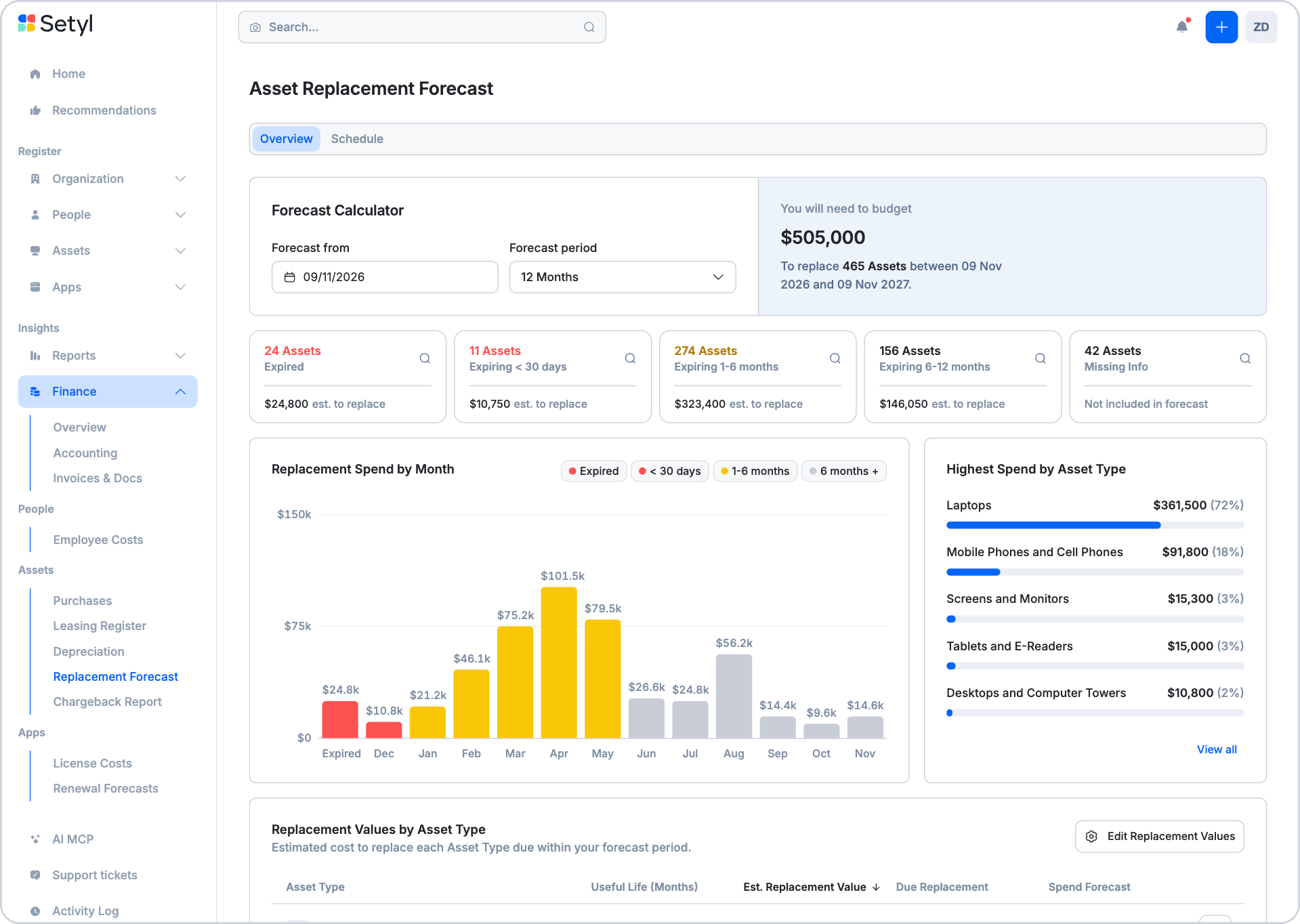
The Replacement Forecast shows which Assets have reached, or are reaching, the end of their useful life, and estimates how much it will cost to replace them. It replaces the Useful Life page and is available on all plans.
Who can see it
Access is controlled by the Finance: All permission in Settings > Company Settings > User Permissions. By default:
- Owners: always have access.
- Managers: have access, which can be turned off.
- Supervisors: don't have access, but it can be turned on.
- Employees: can't be given access.
Open the Replacement Forecast
Go to Finance > Replacement Forecast, or click View All on the Assets need replacing card on your Home page. It has two tabs, Overview and Schedule.
How the forecast is worked out
Setyl works out when each Asset needs replacing by adding its useful life to its purchase date. For example, an Asset bought on 1 May 2024 with a useful life of 7 months is due for replacement on 1 December 2024. This is its Useful Life End Date.
To estimate the cost, Setyl uses the Est. Replacement Value of each Asset's Asset Type. For example, 10 Laptops due for replacement with an Est. Replacement Value of £1,500 add £15,000 to the forecast.
Assets without a purchase date, useful life or Est. Replacement Value aren't included. See "Fix Assets with missing info" below.
Set useful life and replacement values for each Asset Type
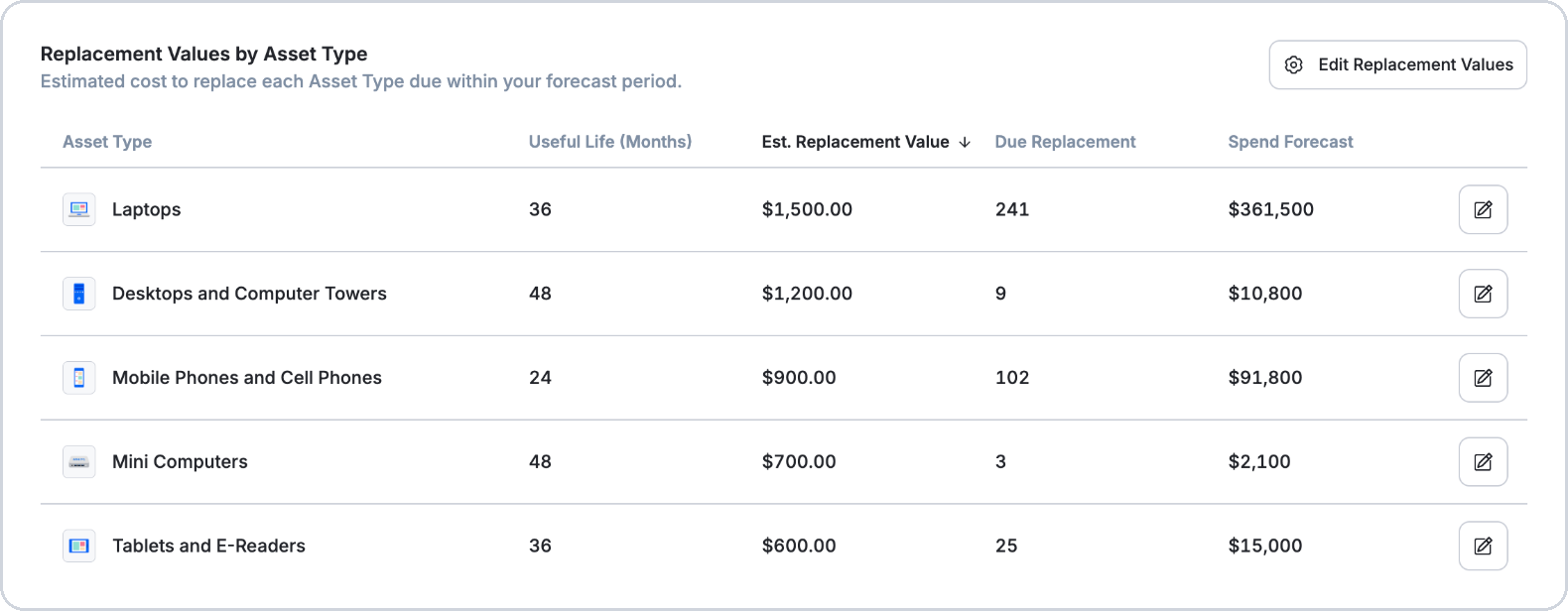
Every Asset Type has a Useful Life Length and an Est. Replacement Value. We've already set these for the most common Asset Types, so your forecast works straight away. You can change them at any time to match how long you keep your equipment and what you pay for it.
To check or change them:
- Go to Settings > Company Settings and open the Asset Types tab. The Replacement column shows each Asset Type's useful life and Est. value.
- Click the Edit button next to an Asset Type.
- Enter the Useful Life Length in months and the Est. Replacement Value, then click Update.
You can also do this from the forecast itself: click Edit Replacement Values on the Overview tab.
Plan your budget
On the Overview tab, use the Forecast Calculator:
- Choose a Forecast from date.
- Choose a Forecast period, from 30 Days to 36 Months.
You will need to budget shows the total estimated cost, and how many Assets you'll need to replace in that period.

Understand the Overview
Stat cards: the number of Assets that are Expired, Expiring < 30 days, Expiring 1-6 months and Expiring 6-12 months, with the estimated cost to replace each group. Missing Info shows Assets that aren't included in the forecast. Click the magnifying glass on a card to see those Assets.

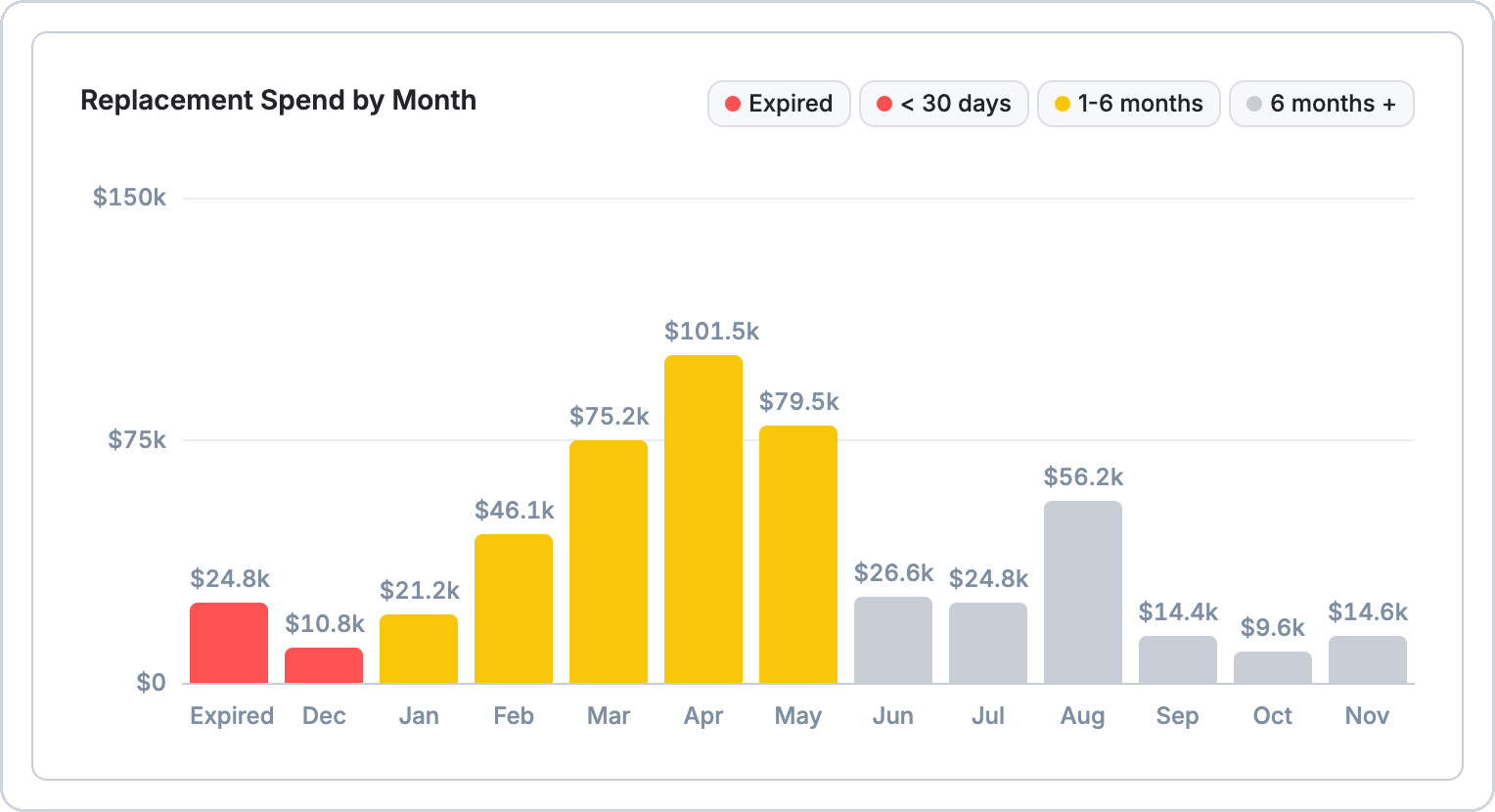
Replacement Spend by Month: the estimated replacement cost due each month, with Expired Assets in their own bar.
Highest Spend by Asset Type: the Asset Types that will cost the most to replace. Click View all to see every Asset Type.

Replacement Values by Asset Type: each Asset Type's useful life, Est. Replacement Value, number of Assets due for replacement and spend forecast.
See every Asset's replacement date
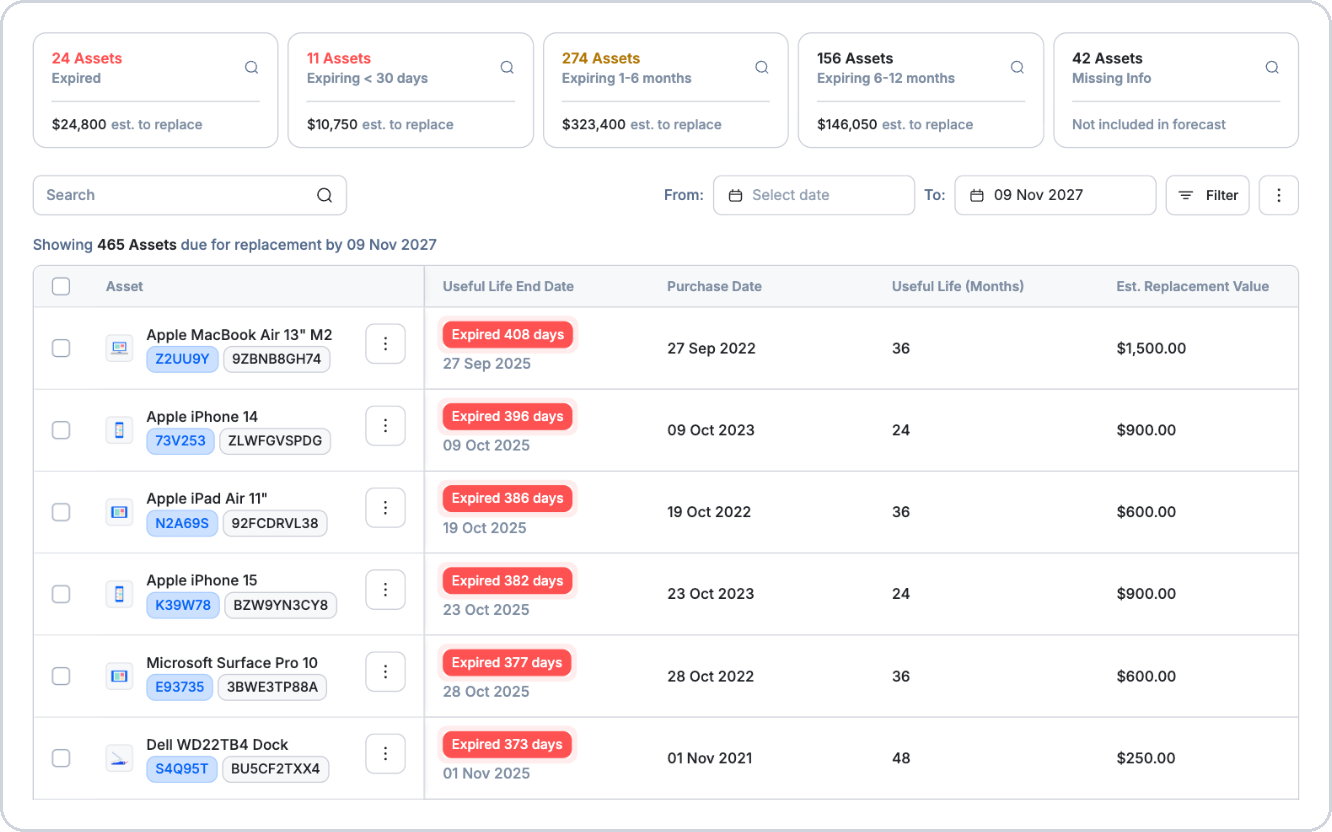
The Schedule tab lists your Assets with their Useful Life End Date, Purchase Date, Useful Life (Months), Est. Replacement Value, Purchase Price, Status and Assignee. Use From and To to choose a date range.
Fix Assets with missing info
Click the magnifying glass on the Missing Info card to see Assets missing a purchase date, useful life or Est. Replacement Value.
- Missing useful life or Est. Replacement Value: click Add Replacement Values to fill in every Asset Type at once, or click Fix next to an Asset to edit its Asset Type. Every Asset of that type is then included in the forecast.
- Missing purchase date: see How do I change the date an Asset was purchased on?
Where is the Useful Life page?
The Useful Life page has been updated and is now the Replacement Forecast.
If you have questions, contact us on live chat or at hello@setyl.com.